Setting a background in Canva starts with selecting the page itself or opening the Background tab in the editor side panel. Click the color tile in the toolbar above the design to open the color picker. The picker gives you a Document Colors section for palette colors you've already used, a Default colors grid, a HEX code input field for exact values, and a rainbow slider for custom hues.
The Background tab is the first tab in the side panel when nothing on the canvas is selected. Its icon is a checkerboard or color swatch. Click a text box or image, and the side panel changes: the Background tab vanishes. Deselect everything by clicking an empty area of the page, and the tab returns. This single behavior causes more confusion than any other part of the background workflow.
For a solid color, choose any swatch or enter a HEX code. The color fills the entire page behind every other object. Canva Free users can use any color in the picker. Solid colors are not restricted by plan, though Canva Pro and Canva for Teams unlock the full premium asset library.
Applying a gradient or pattern as background
Working with gradients
To apply a color blend, select the background object on the page, click the color tile in the toolbar, and choose the Gradient tab. The tab is marked by a square icon with a diagonal split. Canva offers linear, radial, and other preset blends. Clicking a preset applies it immediately to the full background.
Adding a pattern or texture
Patterns and textures work differently. If the Background tab in the side panel shows pattern options in your editor version, you can select one there. If not, open the Elements tab and search for Patterns or Textures. Drag the asset onto the page. Stretch it by pulling the corner handles until it covers the entire canvas.
Patterns behave as image objects, not as background properties. They sit on the page like any other layer. The exact location of pattern and texture assets depends on Canva's current library organization. They may appear under Elements > Photos or Elements > Graphics. Searching is the reliable way to find them regardless of category changes.
Adding an image as a full-page background
To use a photo as a background, open the Photos tab in the side panel and drag an image onto the page. Alternatively, use the Uploads tab to drag an image from your computer. Canva accepts JPG, PNG, SVG, and WebP files for uploads.
Drag the image's corner handles to the edges of the page until the photo fills the entire canvas. If the image proportions differ from the page dimensions, part of the photo will be cropped. Canva does not auto-fit images to page size, so manual stretching is required each time.
Position the image behind other objects by clicking the Position button in the toolbar and selecting Backward or Send to Back. The photo remains a separate layer and can be selected or moved unless you lock it.
Locking the background layer so it does not move
After setting the background, lock it so it cannot be accidentally moved or edited while you work on other objects. Select the background layer. Click the Position button in the toolbar. Choose Lock from the menu.
You can also right-click the layer and select Lock from the context menu. The exact wording may be Lock or Lock position depending on the editor version. A locked layer shows a small lock icon when selected. The same icon appears in the layers panel next to the locked layer.
Unlocking a layer
To release the lock, select the layer and click the lock icon, or open the Position menu again. Locking the background is a precaution, not a requirement. If you skip it, clicking the background area can select the background layer instead of whatever you intended to edit beneath it. For designs with many overlapping layers, locking the background saves time and frustration.
Removing or resetting the background
To remove a background layer, select it and press the Delete key. If the background was set through the Background tab, click that tab and choose a new solid color or the default white or transparent option. The default background is white for new designs.
Removing a background image and resetting the background color are separate actions. If you set a background color through the Background tab and also placed an image as a layer, you must delete the image layer and then change the color if needed. The Background tab only controls the solid color or blend applied as the page background, not image layers.
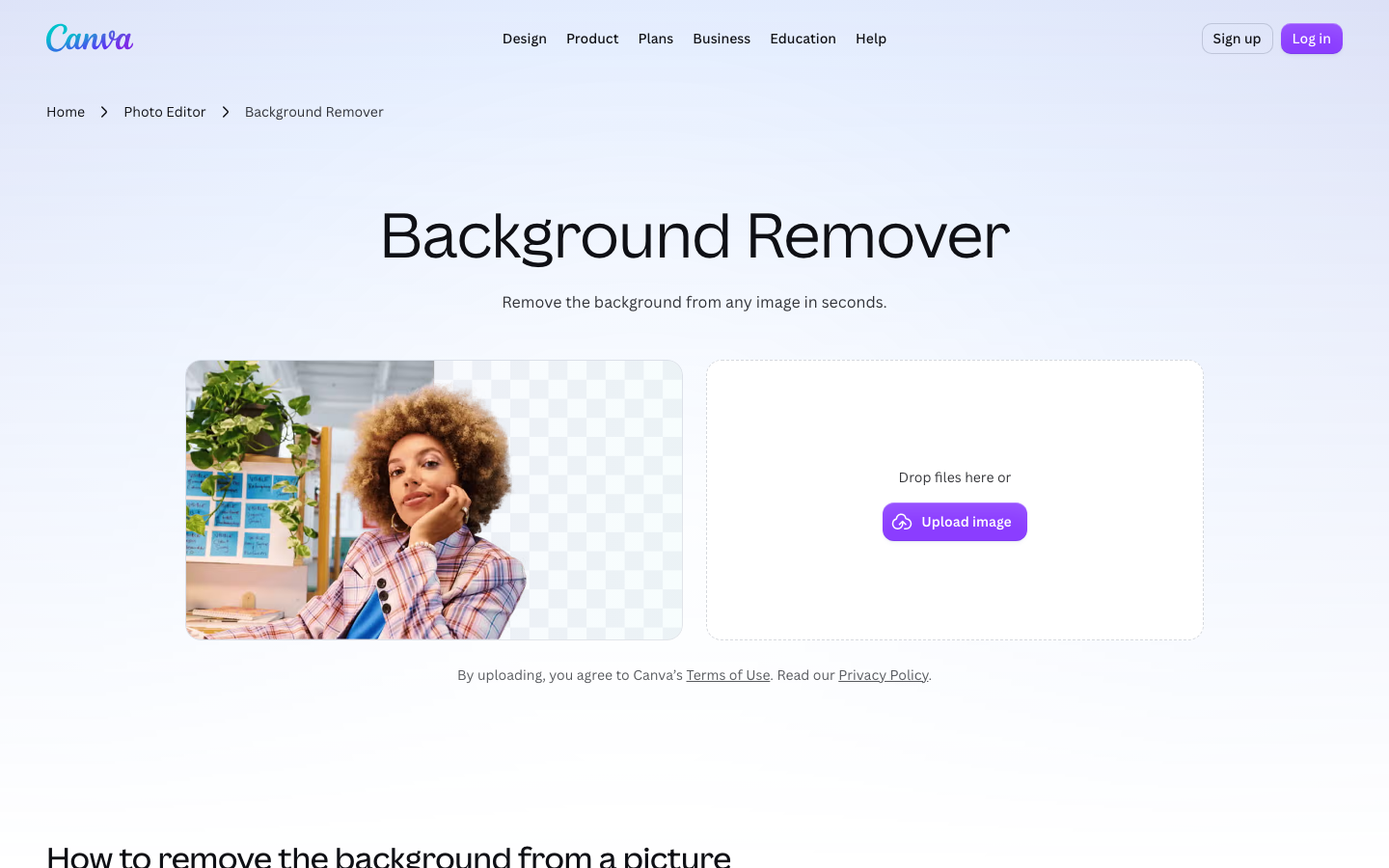
For designs that use a transparent background, such as social media profile pictures or logos, there is no background to remove. The checkerboard pattern in the editor indicates transparency. Canva exports transparent backgrounds only for PNG downloads.
What changes between editor versions
Background tab availability
Canva maintains two editor versions: the classic editor and the new editor. The Background tab as a dedicated side panel option may not appear in the classic editor. In that version, click the page background directly to access the color picker.
Gradient labeling
The Gradient tab icon name can vary between versions. One release may call it Gradient while a later release uses Gradient colors. The diagonal split square icon is the most reliable visual cue. The function does not change.
Locking consistency
Layer locking behavior is consistent across versions. The Position button and right-click menu are present in both. The small lock icon on selected locked layers is also the same. Switching between versions, you will find the same locking mechanism in the same location.
Limitations and workarounds
Plan restrictions
Canva Free accounts have access to fewer blend presets and pattern assets than Canva Pro or Canva for Teams. The color picker and HEX code input work identically on all plans, so custom solid colors are unrestricted. Paid plans add the full library of premium blends, patterns, and stock photos.
No automatic tiling
Background images cannot be tiled or repeated automatically. To create a repeating motif, duplicate the image layer multiple times and arrange them manually. Alternatively, use a pattern asset from the Elements tab that is designed to repeat.
Simulating a blurred background
Canva does not support background blur effects. To blur a background image, apply a blur filter to the image layer from the Adjustments panel. The blur is a filter on the layer, not a native background property. For designs that need a blurred background behind text, place the image, blur it, then add text on top.
How other tools compare
Competing tools such as Adobe Express and Figma handle backgrounds differently. Figma treats the background as a fill property of the frame. Adobe Express uses a layer approach similar to Canva's. Neither offers a direct equivalent to Canva's Background tab.
Key facts
- Access Background tab: Click empty page area or select page; tab appears as first icon in side panel
- Solid color: Color picker with HEX input, default grid, Document Colors, and hue slider
- Gradient: Select background layer, click color tile, choose Gradient tab (diagonal split icon)
- Pattern or texture: Search 'Patterns' or 'Textures' in Elements tab, drag onto page, stretch to fill
- Image background: Drag photo from Photos or Uploads, stretch corner handles to page edges
- Lock background: Select layer, click Position button or right-click, choose Lock
- Remove background: Delete key for layers; Background tab for color resets to white/transparent
- Supported upload formats: JPG, PNG, SVG, WebP