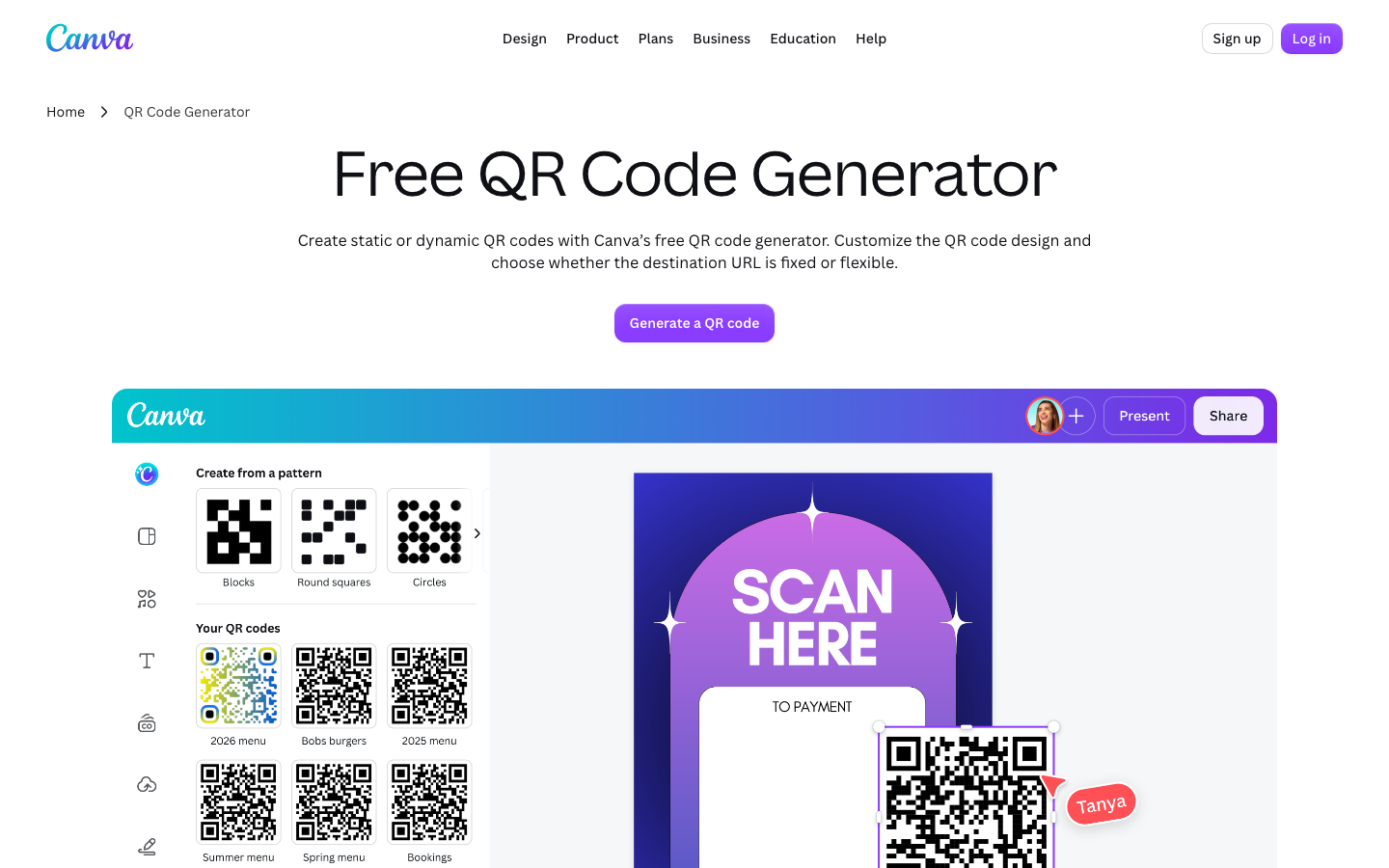
Canva includes a QR code generator that works inside the editor, on both the web browser version and the mobile app. The generator is open to Canva Free users and does not require a Pro or Teams subscription. It encodes a URL as a static image component you can place directly on your design, resize, recolor, and export in common Canva formats.
The QR code generator is an app in the Canva Apps marketplace, officially called 'QR Code' (or 'QR Code Generator'). You reach it from the editor side panel by clicking Apps, or by clicking the '+' icon and selecting 'QR Code' from the Create New section. You can also search 'QR' in the Apps marketplace to find it. Once you open the generator, you enter the URL you want to encode, and the resulting QR code lands on your layout as a new graphic.
The code is permanent and does not expire, as long as the destination URL remains active. Because it is a static image, it does not update if the URL changes. You treat the QR code like any other graphic on the page.
How to customize the QR code colors
Adjusting foreground and background
After you generate the QR code and select it, the toolbar at the top of the editor shows color options for the foreground and backdrop. This is the same toolbar that appears when you select text or shapes. You can change the foreground color (the dark squares of the QR code) and the backdrop color independently. The QR code remains scannable as long as there is sufficient contrast between the two.
The color picker works with Canva's default palette, custom hex codes, and colors sampled from other items on the page. There is no option within the free generator to embed a logo in the center of the QR code or to alter the shape of the data modules. For those advanced features, you would need a dedicated QR code platform that likely charges for dynamic codes and scan analytics.
What you cannot change
Canva's generator does not offer dynamic QR codes, scan tracking, or analytics. The output is a static image. If you need to edit the destination URL after the QR code is on the page, you must delete the existing code and generate a new one from the Apps panel.
Where the QR code appears on the canvas
Placement and alignment
The generated QR code lands as a new item in the center of the workspace, at a default size that is large enough to scan but small enough to fit inside most layouts. You can resize it by dragging the corner handles, just like any other image or graphic. The QR code does not become a live link when clicked inside the Canva editor. It behaves as a static image.
If you need to move the QR code to a different part of the layout, you drag it by clicking and holding. The component snaps to alignment guides, which helps when you want to position it in a corner or inside a frame. You can also layer it behind or in front of other items using the Arrange tool in the toolbar.
Sizing for print and screen
For print materials, place the QR code at least 20 millimeters wide to ensure reliable scanning. For digital screens, a size of 2 to 3 centimeters on a typical monitor is usually sufficient. Canva does not enforce a minimum size, so it is up to you to ensure the code is large enough to scan.
How to download the design with the QR code
Exporting the full design
Once the QR code sits on your page and you have finished editing, you download the entire design in one of Canva's common formats. The QR code is part of the design; there is no separate export for the QR code alone. The formats on offer are PNG, JPG, PDF Standard, PDF Print, and SVG (for Canva Pro and Teams users). For animated designs, you can also export as MP4 or GIF.
Getting a standalone QR code file
If you need the QR code as a standalone file, the simplest method is to create a blank design, place the QR code on it, and download that design as a transparent PNG. Make sure the backdrop of the workspace is set to transparent (or the same as the QR code's backdrop) so that the exported file does not include a white rectangle around the code.
For printed materials, PDF Print is usually the best choice because it preserves higher resolution. For digital use, PNG with a transparent backdrop works well. The QR code will retain its colors and size at the export resolution you choose.
Limitations of the free QR code generator
What the free generator cannot do
The QR code generator in Canva Free is straightforward but limited. It encodes a single URL. It does not support dynamic QR codes that let you change the destination without reprinting the code. It does not provide scan statistics or location data. It does not allow you to embed a logo or brand mark inside the QR code pattern. Those features come from dedicated QR code services, some of which offer free tiers with limited scans per month.
When the free generator is enough
For a one-time use, such as a flyer, a business card, or a social media graphic, Canva's free generator is sufficient. The QR code will not expire, so as long as the URL stays live, the code will work indefinitely. If you need to update the destination later, you must generate a new QR code and replace it in the design.
Using the generator on mobile
The generator works the same way on the mobile app. You open a design, tap the plus icon, find the QR Code app, enter the URL, and the code appears on the workspace. The color customization and export options work identically on mobile, though the interface is laid out differently to fit smaller screens.
Key facts
- Availability: Canva Free, Pro, and Teams; web browser and mobile app
- Access method: Apps panel in the editor, or the '+' icon under 'Create New'
- Output type: Static image element on the canvas
- Customization: Foreground and background colors via the toolbar
- Export formats: PNG, JPG, PDF Standard, PDF Print, SVG (Pro/Teams), MP4, GIF
- Expiration: Does not expire if the destination URL remains active
- Dynamic QR codes / analytics: Not available in Canva's generator