Canva often produces blurry or cropped output because its standard export settings target screens, not paper. To get crisp physical output at home or through a local shop, choose PDF Print. The steps below cover which settings matter most and which ones to skip.
Export a design by clicking Share in the top right corner, then pick Download. From the file type dropdown, select PDF Print. Before you click Download, tick the box for Crop marks and bleed. This combination delivers a 300 DPI file: bleed extends the background past the trim line, and crop marks guide the guillotine. PDF Standard supports the same checkbox, but PDF Print is built specifically for physical output.
Bleed keeps white slivers from appearing along the edges after trimming. Even a fraction of a millimeter of misalignment exposes bare paper underneath. Crop marks tell the operator exactly where to cut. If your artwork stops short of the edge, skip bleed and ignore the marks.
Home output: the settings most people get wrong
Scaling undercuts sharpness
At home, the biggest mistake is letting the driver shrink the image to fit the sheet. Open the dialog and set scaling to Actual Size or 100%. Any other setting resamples the artwork, introducing softness or clipping the edges. Even when a PDF looks perfect on screen, Fit to Page compresses the design by a few percent and leaves an uneven white margin. Check the print preview for a border you did not intend.
Browser output is a shortcut, not a finish tool
You can send a Canva design straight to the machine from the browser's file menu. That path is fast but produces lower fidelity than a downloaded PDF. The browser re-renders the page at screen resolution (often 72 DPI) and strips bleed and crop marks. Reserve this for drafts or internal proofs where layout matters more than finish.
Media type and color handling
Most desktop machines assume plain paper and a generic color profile. For better results, select the media type that matches what you loaded (matte or glossy) and turn off any color management in the driver so the PDF's embedded sRGB profile stays intact. Canva exports sRGB, the standard for consumer units.
Professional output through Canva's fulfillment service
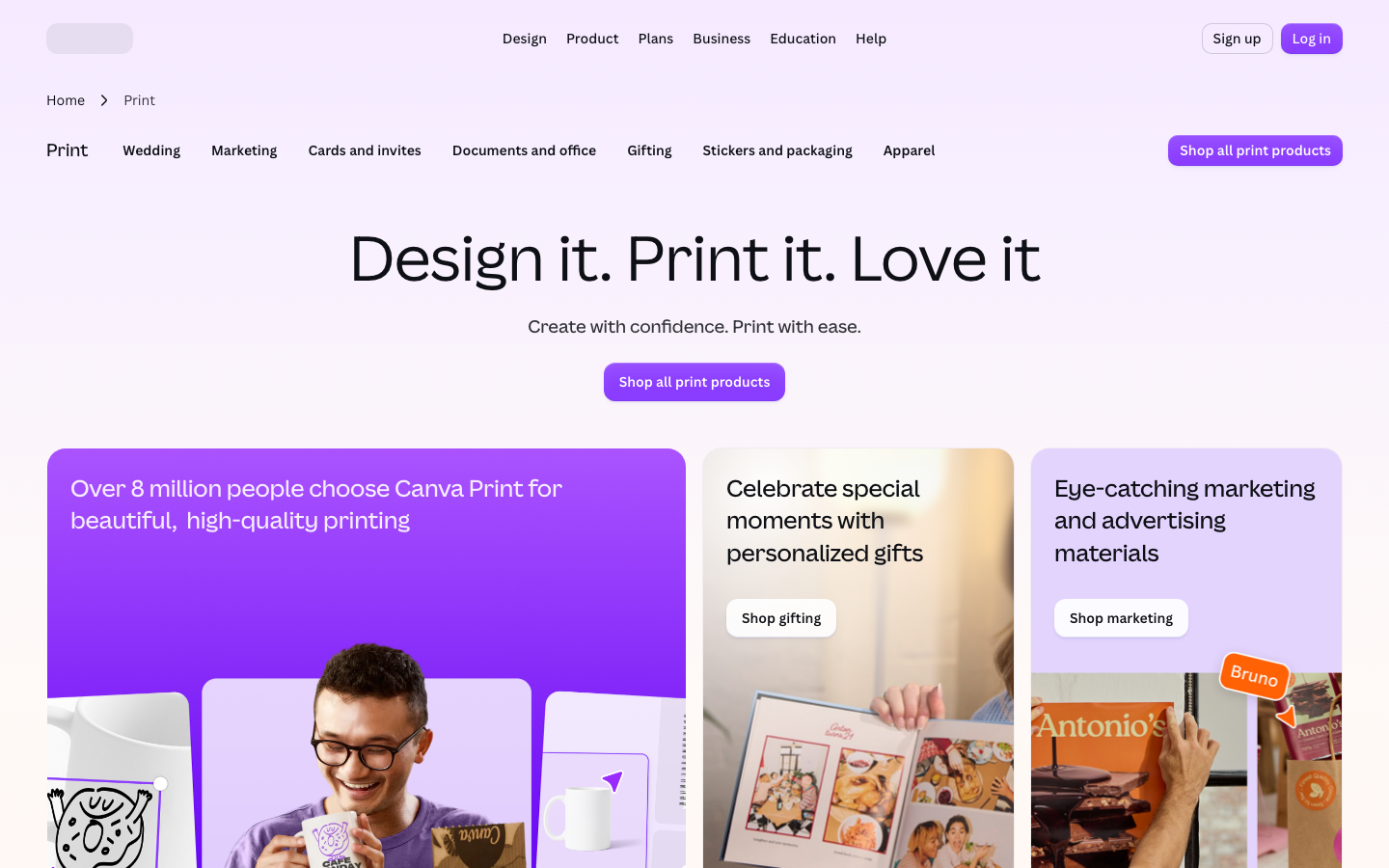
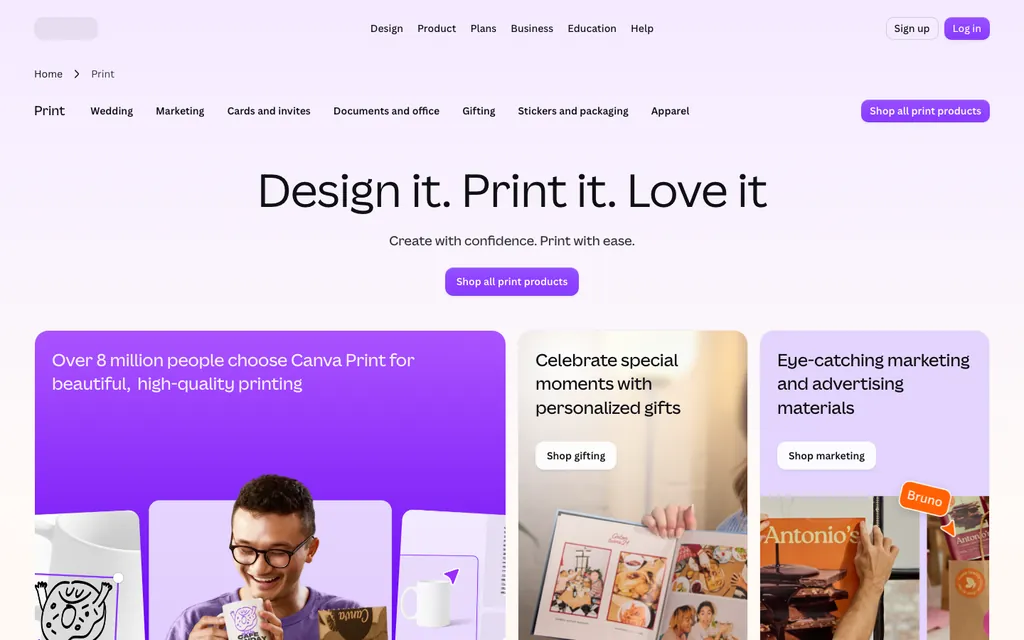
Canva runs its own fulfillment operation called Print with Canva, reached from the editor via the Share menu. The service processes bleeds, trims, and paper selection automatically, so you never touch a file yourself. It is limited to certain regions, and Canva does not keep a consistent public list of supported countries. Users outside the coverage area should fall back on PDF Print and a local shop.
When you work with a shop, hand over the PDF Print file exactly as exported. Never convert it to PNG or JPG first. Those formats are pixel-based and drop every vector element in the design. A 300 DPI PNG may look passable, but it lacks crop marks and bleed, leaving the shop with no trim reference. PDF Print preserves all vectors, fonts, and transparency, and includes the bleed and marks a commercial printer expects.
If the shop requests a different format, ask whether they can accept a PDF with bleed. Most commercial operations prefer PDF/X-1a, but Canva's PDF Print is close enough for standard jobs. For large-format pieces (posters, banners), verify the maximum page size Print with Canva supports and compare it against the shop's specifications.
When to reach for PNG, JPG, or PDF Standard
PDF Print wins for physical output, yet it's not always necessary. Use PNG for screens, social posts, or slide decks where a transparent background is required. JPG compresses heavily and drops transparency; it suits photos and web graphics but not physical output unless you export at maximum quality. PDF Standard sits between them, keeping vectors and fonts but including bleed and crop marks only if you tick the checkbox. That checkbox works for both PDF Print and PDF Standard, though Standard may resolve at a lower figure.
PDF Print is accessible to free accounts. Some advanced options sit behind a Canva Pro subscription, but the format itself is not locked to paid plans. If PDF Print does not appear in the dropdown, confirm that your design dimensions match a standard paper size (A4, US Letter, or similar). Custom dimensions can force PDF Standard.
Fixing the most common problems
Soft, fuzzy results
A blurry page signals that the export resolution was too low. Only PDF Print guarantees 300 DPI. PNG and JPG exports from Canva resolve at 72 DPI for free users, with 96 DPI in Canva Pro. Re-export as PDF Print and lock the driver scaling to actual size.
White edges after trimming
White slivers along the perimeter mean the design shipped without bleed. Return to the download panel, choose PDF Print, and tick Crop marks and bleed. Extend background elements and images at least 3 mm past the page boundary before exporting.
Colors shift on paper
Screens emit additive RGB light. Physical output uses subtractive CMYK inks. Canva delivers sRGB, which is smaller than the CMYK gamut. Some neon or intensely bright on-screen hues cannot land on paper. Calibrating your monitor and choosing a shop that color-manages helps, but absolute fidelity is impossible. Order a test copy before committing to a full run.
Key facts for producing physical output from Canva
- Recommended file type for print: PDF Print
- Resolution of PDF Print export: 300 DPI
- Bleed and crop marks: Present only when 'Crop marks and bleed' checkbox is selected in PDF Print or PDF Standard
- Home output setting: Set scaling to 'Actual Size' or '100%'
- Built-in print service: Print with Canva, accessed via Share menu, not available in all regions
File types compared for physical output
| File type | Resolution | Bleed and crop marks | Best for |
|---|---|---|---|
| PDF Print | 300 DPI | Yes when checkbox selected | Home or shop output |
| PDF Standard | Varies (often 150-300 DPI) | Yes when checkbox selected | Digital or mixed-use |
| PNG | 72 DPI (free), 96 DPI (Pro) | No | Screen, transparent backgrounds |
| JPG | 72 DPI (free), 96 DPI (Pro) | No | Web, photos, no transparency |
Frequently asked questions
Can I print from Canva for free?
Yes. Free users can download designs as PDF Print and produce copies at home or through a local shop. The Print with Canva service may be region-restricted, but the PDF export is open to all accounts.
Why is my Canva print blurry?
The most common cause is exporting as PNG or JPG rather than PDF Print. Those formats resolve at screen resolution (72 DPI). Re-export as PDF Print at 300 DPI and confirm the output scaling is set to Actual Size.
How do I add bleed and crop marks in Canva?
Open the download panel, pick PDF Print or PDF Standard, then tick the 'Crop marks and bleed' checkbox. The background must extend past the page edge for bleed to work. Canva does not add bleed automatically; you must position elements to fill the bleed area.
Is Print with Canva available in my country?
Canva does not publish a definitive list. The Print with Canva button surfaces in the Share menu only for supported regions. If you cannot see it, export as PDF Print and use a local shop.