Where Canva designs live and how they move
Canva design files carry the .canva extension and live in the cloud. Microsoft PowerPoint and Google Slides cannot open them natively. Moving a design into either presentation tool always requires an export. Canva provides two export paths: a local .pptx file and a Google Drive integration that converts to Google Slides format. Which path works depends on whether your account is free or paid.
The steps below cover each route, detail what gets lost in translation, and walk through adding Canva slides into an existing Google Slides deck.
Save a local PowerPoint file
Step by step in the Canva editor
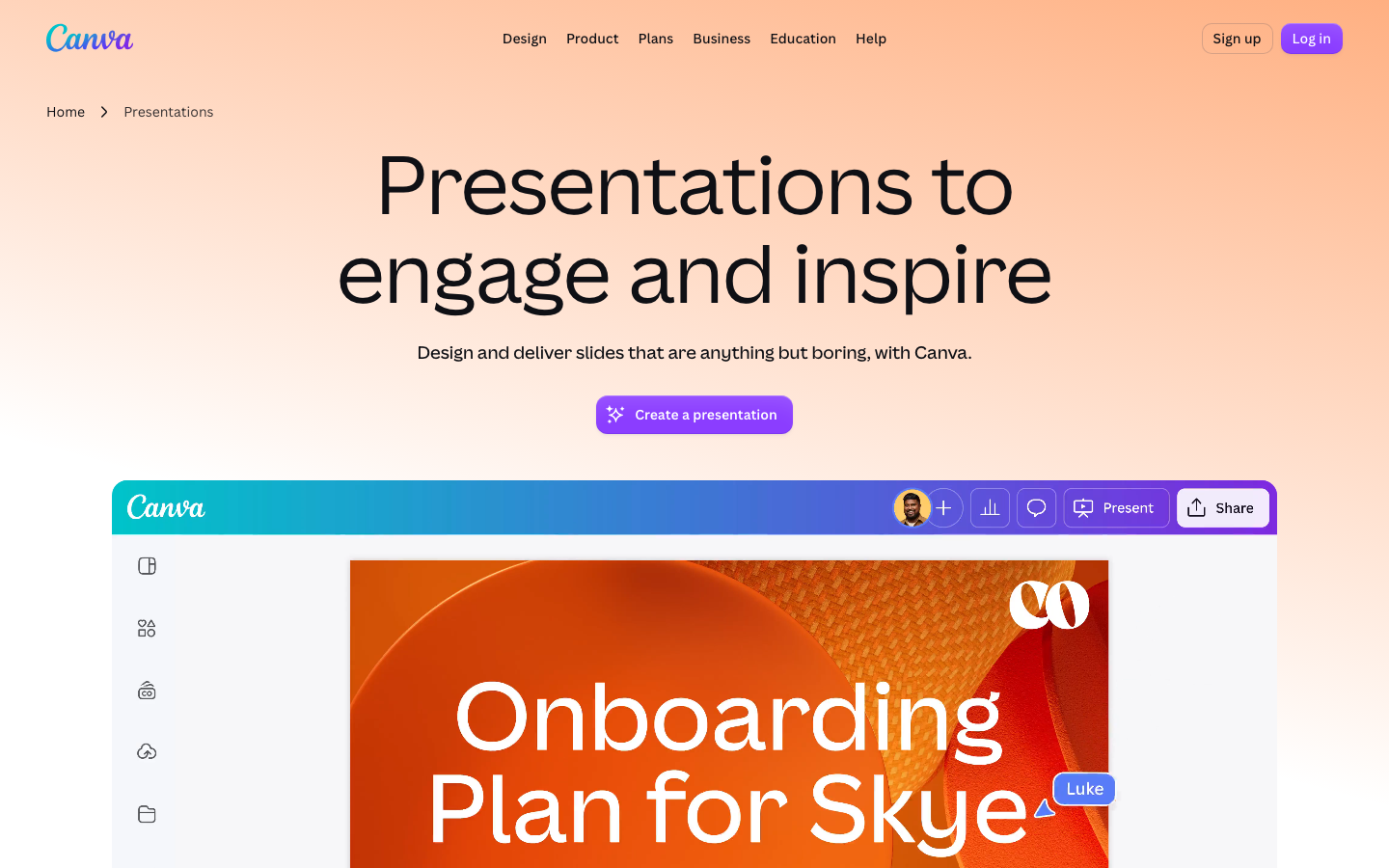
Inside the Canva editor, click the Share button in the top-right corner, then select Download. In the panel that opens, locate the File type dropdown. Choose Microsoft PowerPoint. The file extension is .pptx. You can export specific pages instead of the whole design. After picking pages, click Download. The browser saves a .pptx file to your machine.
Who can use it
This method works for every Canva user, including free accounts. The .pptx file opens in desktop PowerPoint and PowerPoint for the web.
How animations survive
Animations from Canva are partially preserved. Simple entries and exits typically carry over. Complex multi-step motion and timed sequences do not. If the deck leans heavily on animation timing, test a single slide before converting an entire presentation.
What breaks
One limitation: the .pptx export strips embedded audio and video pulled from Canva's media library. Those elements appear as placeholder objects in PowerPoint. Re-insert the media files in PowerPoint afterward.
Convert directly to Google Slides
Using the Google Drive integration
Canva connects to Google Drive. From the editor, click Share, then scroll down or click More (the exact label varies with UI updates). Choose Save to Google Drive. If you haven't already linked your Google account, Canva will prompt you to do so through the Google Drive app in the Apps section.
The format selector
In the Save to Google Drive dialog, pick Google Slides as the file type. Canva converts the design and drops it straight into Google Drive as a Google Slides file.
Account restrictions
This path is open only to Canva Pro and Canva for Education subscribers. Free users see the Save to Google Drive option but cannot select Google Slides as the file type. The dialog offers PDF or PNG instead.
The two-step workaround for free accounts
Free users who want Google Slides output can download the design as .pptx using the method above, upload that file to Google Drive, then open it with Google Slides. Google Drive converts the .pptx to Google Slides format automatically upon opening. Conversion quality matches the direct route, though font substitutions occur when the original fonts are absent from Google Slides.
Add Canva slides to an existing Google Slides deck
The native-slide method
If the goal is to blend Canva-made slides into a larger Google Slides presentation, convert the Canva design to Google Slides format first. This produces native Google Slides pages that can be copied across decks. Open both the converted file and the target presentation in Google Slides. In the converted file, select the slides in the left-hand thumbnail panel (hold Shift to pick multiple). Right-click and choose Copy. Then go to the target presentation, right-click where the new slides belong, and choose Paste.
What the paste keeps and loses
Formatting, images, and text placements stay intact. Any animations from the original Canva design are removed during conversion to Google Slides. Google Slides does not share Canva's animation model. Pasting .pptx slides directly into Google Slides without converting first triggers an on-the-fly conversion that yields the exact same result.
The image-based fallback
An alternative is to export each Canva slide as a PNG or JPEG and insert those pictures into the target Google Slides deck. This preserves every pixel but makes the text uneditable. Reserve this approach for slides that won't require later editing.
What every conversion discards
Motion and transitions
No export from Canva to another presentation tool produces a perfect copy. Four categories of content degrade. First, animations and transitions. Canva's animation engine differs from both PowerPoint's and Google Slides's. The direct .pptx file keeps some simple motions; the Google Slides route drops virtually all of them.
Embedded media and brand elements
Second, embedded media. Audio and video files added from Canva's library become empty placeholders in both target formats. Third, brand kits and templates. PowerPoint and Google Slides do not recognize Canva's brand kit colors, fonts, or logo placements as editable theme elements. They arrive as static objects. Changing a brand font later means editing every slide manually.
These limitations are structural. They hit Canva Pro and free users equally. When a presentation will be edited by a team that does not use Canva, design directly in PowerPoint or Google Slides instead of converting. When you are the only editor and Canva is your design tool, the export paths described above serve final delivery well enough.
\nRelated reading: How to add a link in Canva.